Ask your AI assistant about your calls. Get charts, reports and next steps.
Connect Drellia to the AI assistant you already use and ask in plain language. The answer comes from your Drellia data as reports with charts, coaching and summaries: no CSV exports, no attachments.
Works with MCP-compatible assistants such as Claude and ChatGPT.
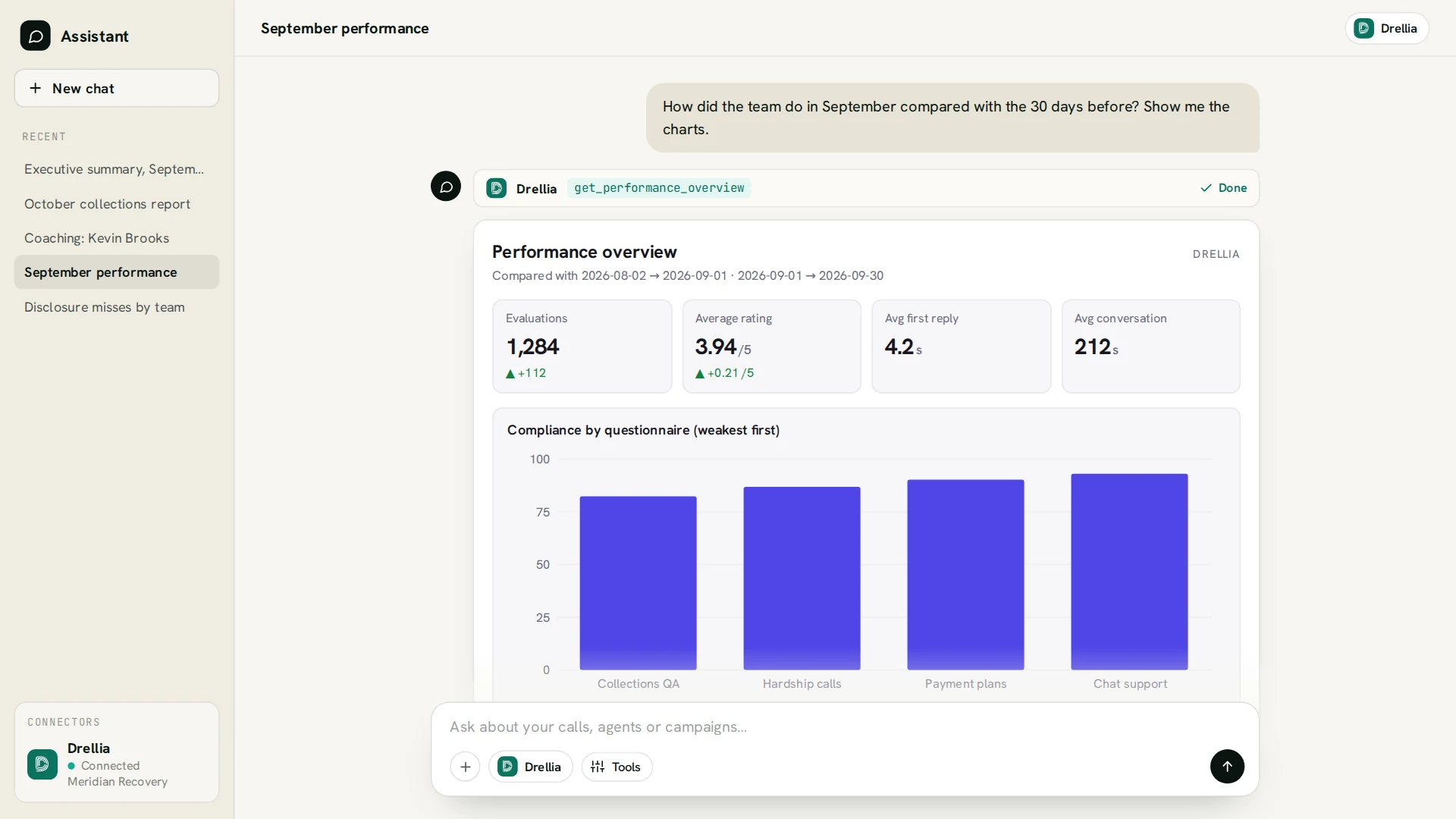
Illustrative example: fictional organization and data. Your assistant’s window looks different.
Stop exporting, charting and attaching.
Without Drellia in your assistant
- 1Export the evaluations to a CSV file
- 2Open it in a spreadsheet
- 3Build the chart by hand
- 4Attach the file to the AI chat
- 5Ask your question, and do it all again next month
With Drellia connected
- 1Ask once, in plain language
- 2Get the report with charts in the chat, from current data
The assistant reads what it needs from Drellia each time you ask, with your permissions.
Real questions, answered by Drellia’s tools.
Each example lists the Drellia tools behind the answer. You don’t name them: your assistant picks them from your question. Names in italics are ready-made prompts, in assistants that show them in a menu.
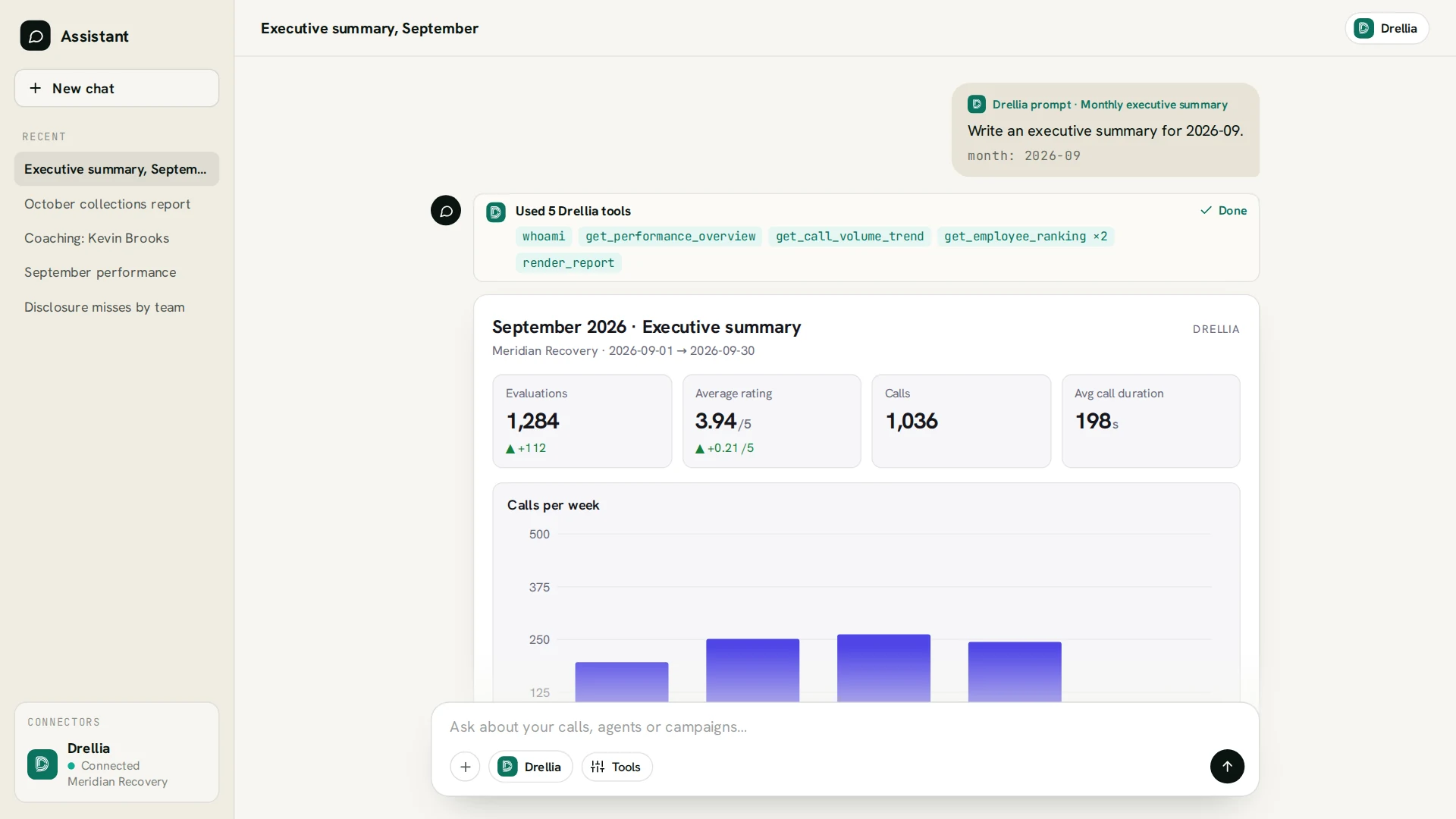
“Monthly executive summary for September.”
A one-page report with KPI tiles and the change against the previous month, the call-volume trend, top and bottom performers, and five bullet points for leadership.
Drellia tools:Monthly executive summaryget_performance_overviewget_call_volume_trendget_employee_rankingrender_report
“Which team members need coaching this week, and why?”
The lowest-rated team members for the week, then advice for each one backed by quotes from their weakest calls.
Drellia tools:get_employee_rankingget_coaching_packet
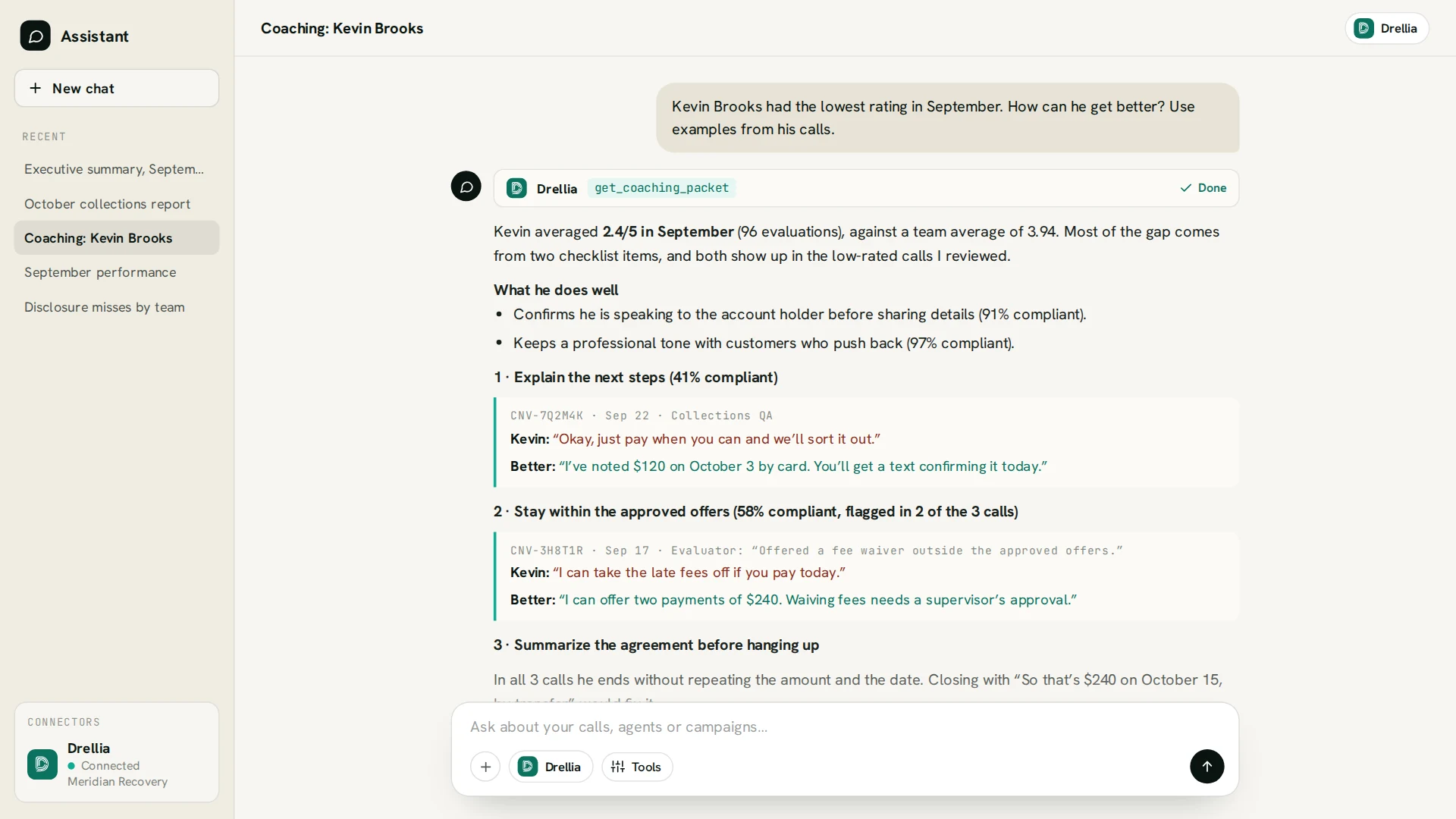
“How can Kevin improve? Use examples from his calls.”
His strengths, the three focus areas with transcript quotes and a better answer for each, and a practice plan.
Drellia tools:Coach an employeeget_coaching_packetget_employee_scorecard
“How is compliance trending on the collections questionnaire in the Hardship team, and which questions are missed most?”
A compliance line over time and the least compliant questions, for the whole organization or one department, employee or questionnaire.
Drellia tools:get_compliance_trendget_questionnaire_breakdown
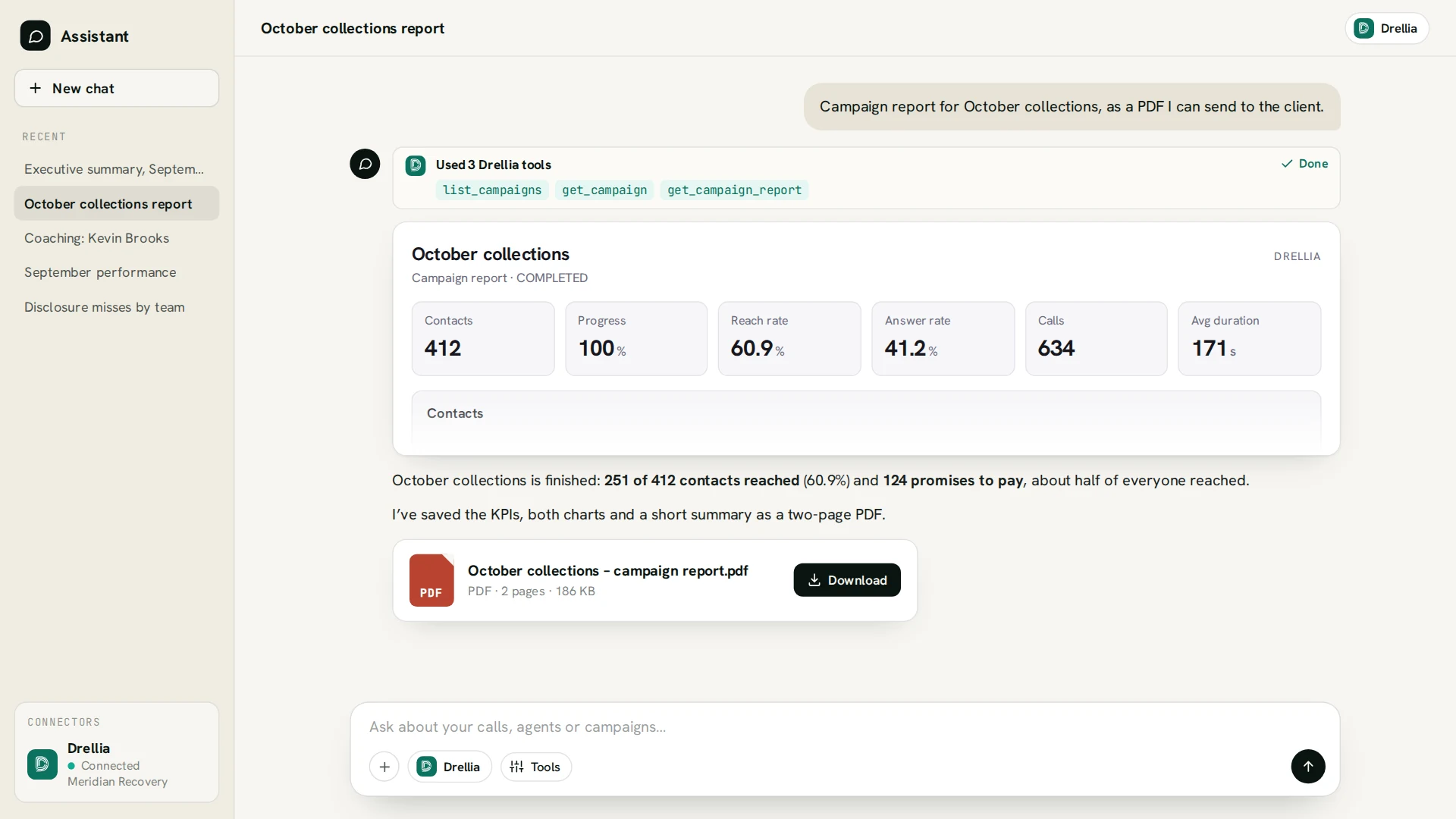
“Campaign report for October collections, as a PDF for the client.”
Progress, reach and answer rates, call durations and the outcome breakdown. Your assistant turns the report into a PDF, if it can create files.
Drellia tools:Campaign reviewlist_campaignsget_campaignget_campaign_report
“Which calls last week ended with the customer disputing the balance?”
An answer from a safe, read-only query over your data, then the transcript of any call you want to read. Each data question uses a few credits, so it needs changes allowed.
Drellia tools:ask_dataget_conversation
“Show this week’s alerts, with the quotes that triggered them.”
The alerts your questionnaires raised in the period, with the moment in the conversation that caused each one.
Drellia tools:list_alertsget_evaluation
“Draft a November reminder campaign with our collections voice agent.”
A draft campaign in Drellia. It never starts calling: you import the contacts and launch it in Drellia.
Drellia tools:list_voice_agentscreate_campaign_draft
What it looks like in the chat.
Illustrative example: fictional organization and data. Your assistant’s window looks different.
Connected in three steps.
- 01
Turn it on for your organization
AI assistants are switched on per organization. Ask your Drellia contact and we enable it for you.
- 02
Connect and approve with your Drellia login
Add Drellia as a custom connector in your assistant, with the address shown in Drellia under Settings › AI assistants. Sign in with your Drellia account, pick the organization and choose whether it may make changes.
- 03
Ask
Ask in plain language. Assistants that show interactive results display Drellia’s reports as cards with charts; the others get the data as text.
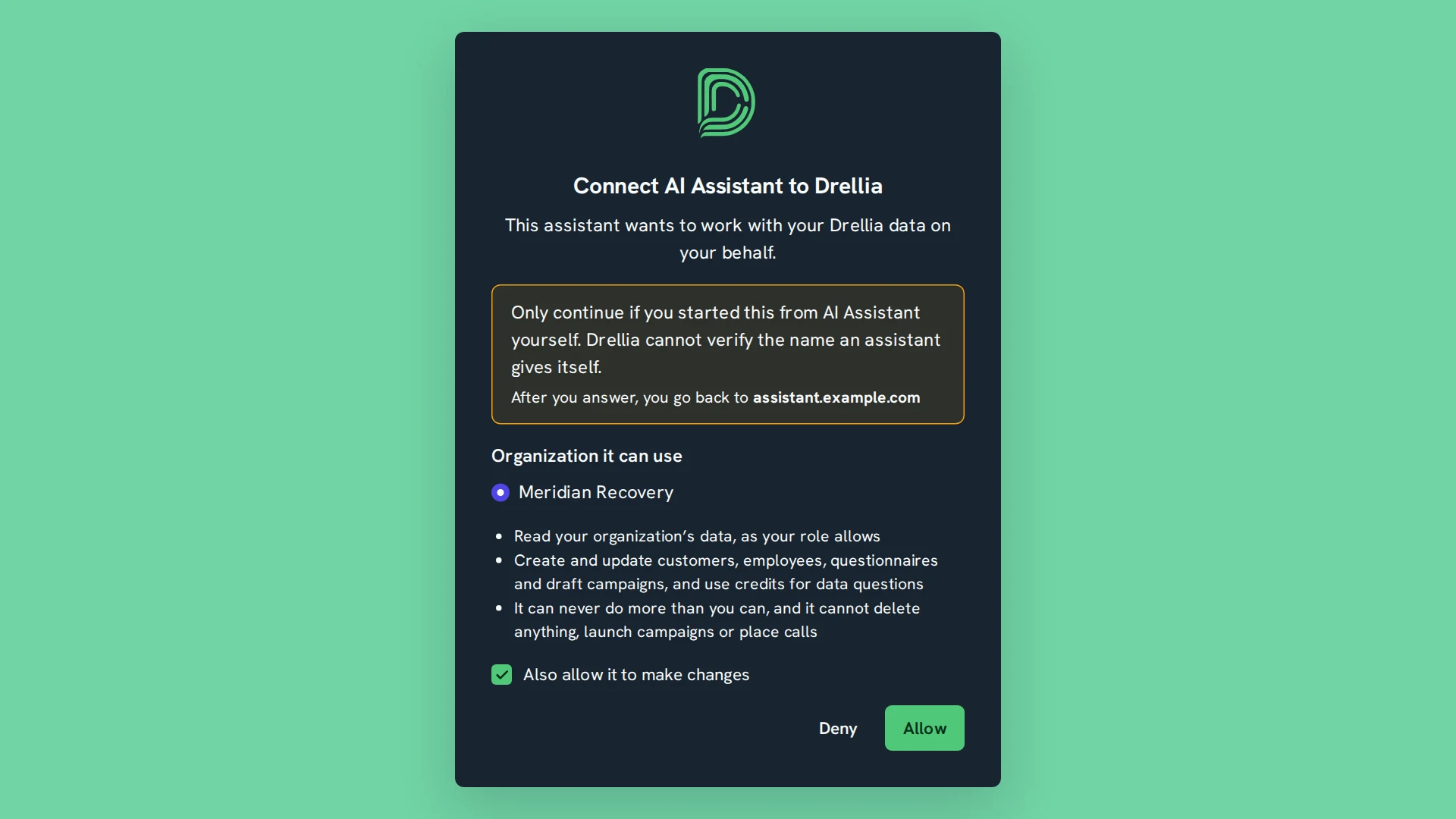
Illustrative example: fictional organization and data. Your assistant’s window looks different.
It acts as you, and never more.
Your role, your data
The assistant has exactly the permissions of your role in Drellia. An operator who sees only their own calls gets only their own calls.
Changes only if you allow them
You choose at sign-in: untick “Also allow it to make changes” to keep it read-only. With changes allowed, it can create and update customers, employees, departments, teams, questionnaires and draft campaigns.
No deletes, launches or calls
It cannot delete anything, launch, pause or stop a campaign, or place a call. Those stay in Drellia.
Switched on per organization
No assistant can connect until AI assistants are enabled for your organization, and each connection is tied to one organization.
Disconnect at any time
Remove an assistant in Settings › AI assistants. Owners and admins see and disconnect every member’s assistants.
Credits only for data questions
Free-form data questions use a few of your plan’s credits; because they spend credits, they need changes allowed. An assistant never buys extra credit packs.
Questions about AI assistants
What is the Drellia MCP server?
MCP (Model Context Protocol) is an open standard that lets an AI assistant use tools from other software. Drellia’s MCP server gives your assistant tools to read your evaluations, conversations, alerts, employees and campaigns, build reports with charts, and make a limited set of changes, all with your Drellia permissions.
Which AI assistants work with Drellia?
MCP-compatible assistants such as Claude and ChatGPT, and any other assistant that supports custom MCP connectors with OAuth sign-in.
Do I need to export or upload anything?
No. The assistant reads what it needs from Drellia when you ask, so answers use your current data. There are no CSV exports and no files to attach.
Can it create PDF reports?
Drellia returns reports as interactive cards with KPI tiles, charts and tables. Your assistant turns a report into a PDF or a document if it can create files; Drellia doesn’t generate the PDF itself.
What can the assistant change in Drellia?
Only what you allow when you connect it (you can untick changes to keep it read-only): create and update customers, employees, departments, teams, questionnaires (new ones start as inactive drafts) and draft campaigns. It cannot delete anything, launch, pause or stop campaigns, or place calls.
Does it use credits?
Reports and lookups don’t. Free-form data questions use a few credits each from your plan’s included credits, so they are only available when you allow changes. An assistant never buys extra credit packs: when the credits run out, it tells you.
Who can connect an assistant?
Any member of an organization where AI assistants are enabled. The assistant gets that member’s role permissions, and owners and admins can see and disconnect every member’s assistants.
How do I turn it on?
Drellia enables AI assistants per organization. Contact us or your Drellia contact; once it is on, each member connects from Settings › AI assistants.
Put your call data in the chat.
Book a demo to see it answer your own questions, or ask us to switch AI assistants on for your organization.
Book a demo